Customizing Follow-Up Timing
Configure the delay between follow-ups and optimize your send schedule for the best response rates.
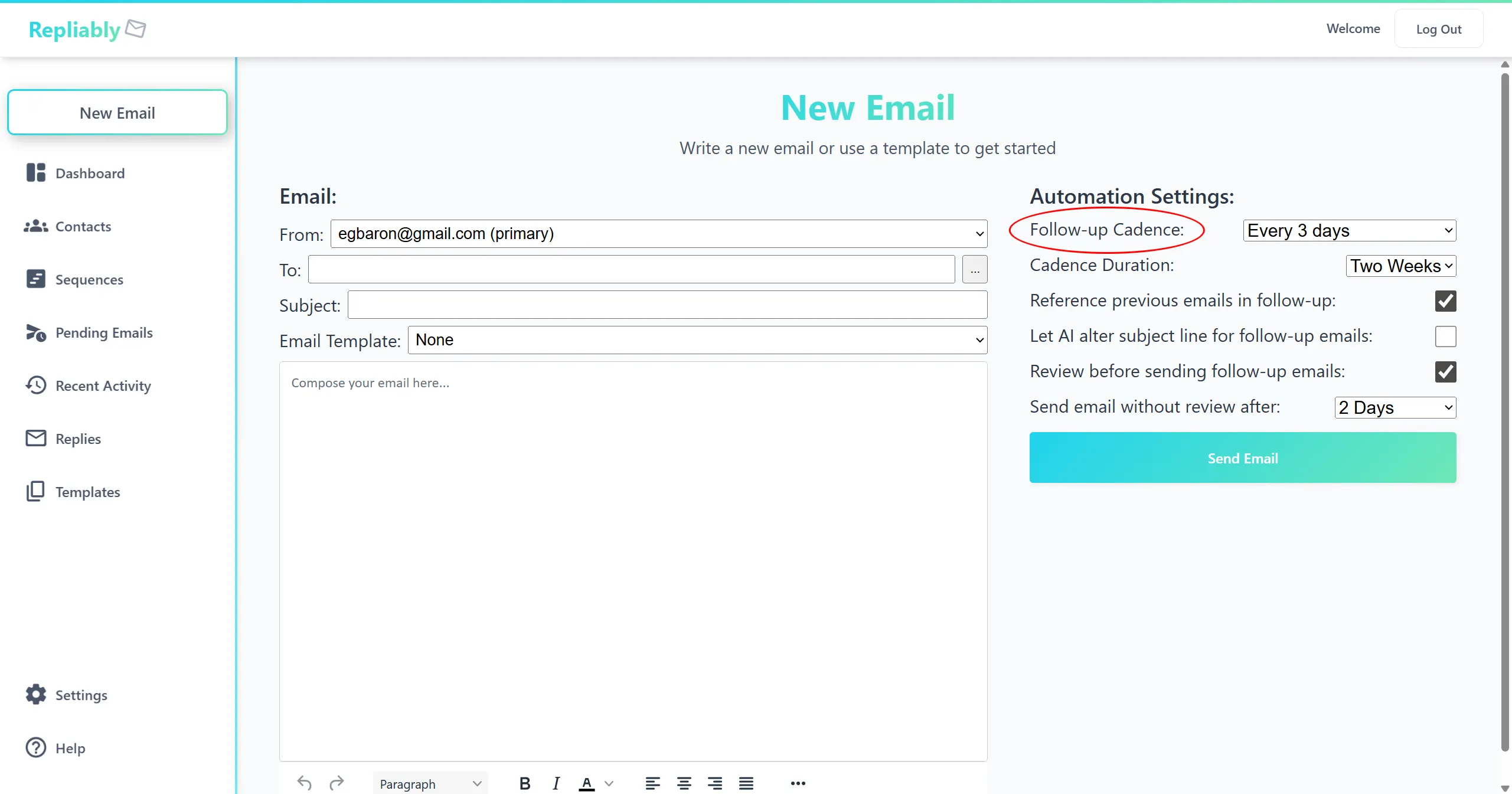
The timing of your follow-up emails can significantly impact your response rates. When composing a new email in Repliably, you choose a follow-up cadence that determines how frequently your automated follow-ups are sent. Here's how each option works and when to use it.
Cadence Types
Repliably offers five built-in cadence types and two additional variants. You select a cadence type when sending your initial email, and all follow-ups in that sequence will follow the chosen pattern automatically.
- Every 3 Days — Sends a follow-up every 3 days. Great for time-sensitive outreach where you want to stay top of mind quickly.
- 4-2 Alternating — Alternates between 4-day and 2-day gaps (4 days, then 2 days, then 4 again, and so on). A good balance between persistence and breathing room.
- Weekly — Sends a follow-up every 7 days on the same day of the week as your original email.
- Bi-weekly — Sends a follow-up every 14 days. Ideal for longer nurture sequences where you want a lighter touch.
- Monthly — Sends a follow-up every 4 weeks. Best for maintaining a long-term relationship without overwhelming the recipient.
- Custom — Set your own specific delays for each follow-up step. This gives you full control over the timing of each message in the sequence.
- No Follow-up — No automated follow-ups are sent. Use this if you only want to send a one-time email without a sequence.
Setting a Sequence Duration
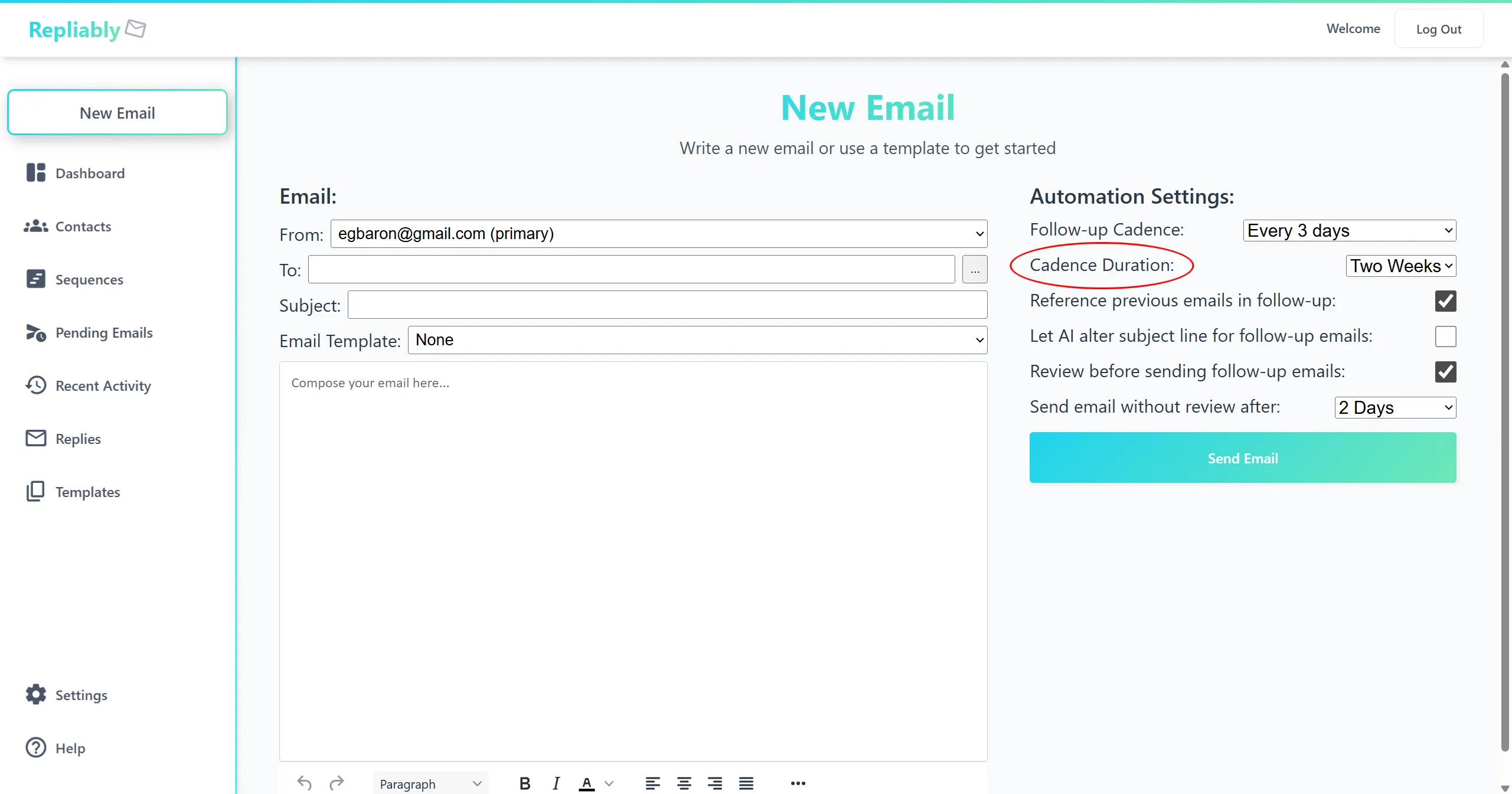
Every sequence has a duration that controls how long follow-ups continue. Once the duration expires, the sequence ends automatically, so no action is needed on your part.
- 14 days — A short burst, good for job applications and event-driven outreach.
- 30 days — About a month of follow-ups.
- 60 days — The default. Covers a solid outreach window.
- 90 days — Extended outreach for longer cycles.
- Indefinite — Follows up until the contact replies or you manually stop the sequence.
Auto-Send and Approval Delays
Each follow-up in a sequence is AI-generated before it's sent. If you have "Review Before Sending" enabled, the message will be held for your approval before going out. You can configure how long Repliably waits for your approval before auto-sending:
- 1 day — The message auto-sends after 24 hours if not reviewed.
- 2 days — The default. Gives you a comfortable window to review.
- Never — The message waits indefinitely until you approve it manually.
Setting Your Defaults
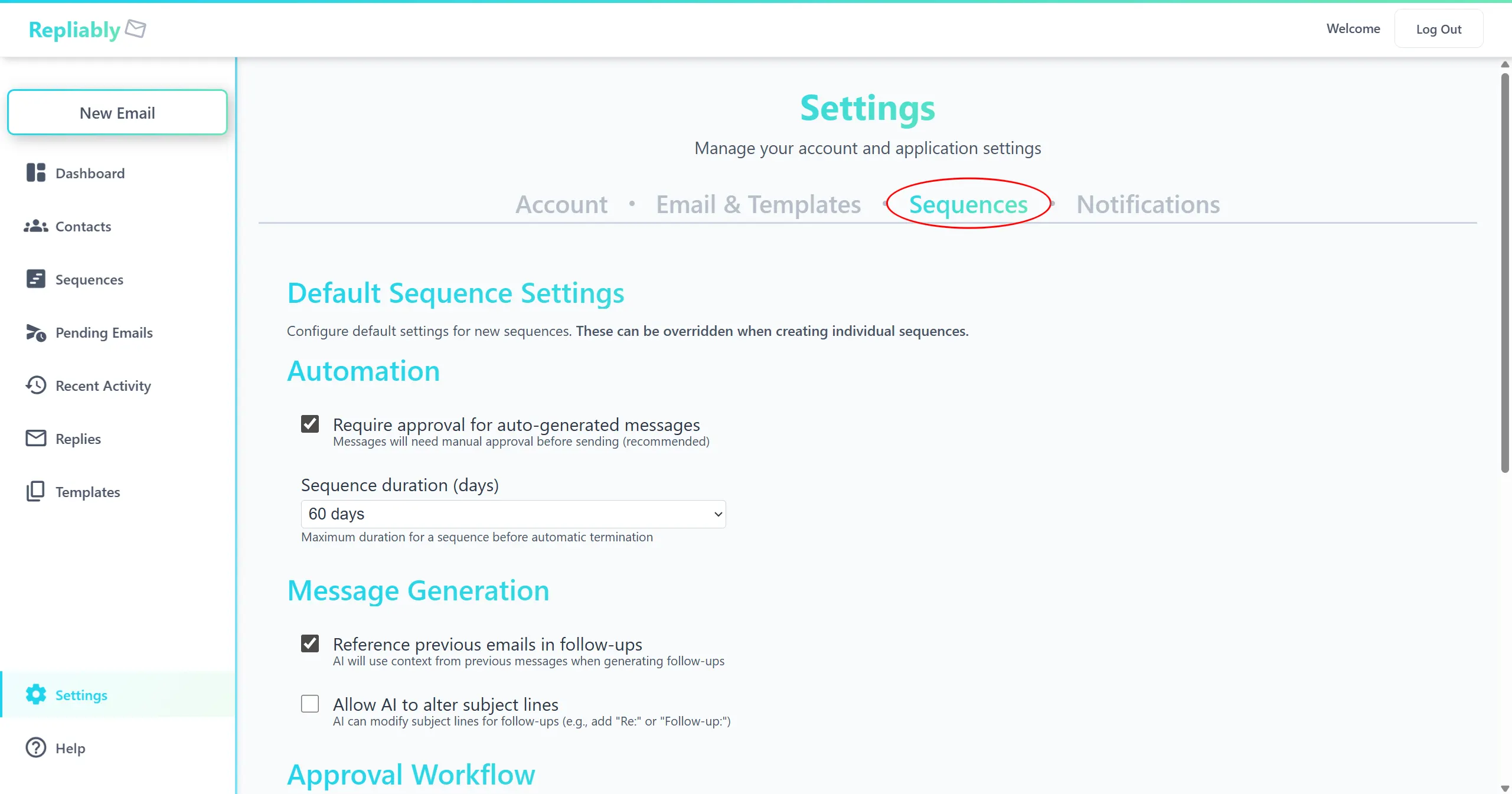
You don't have to configure these settings every time you send an email. Head to Settings to set your preferred defaults for cadence type, duration, review preference, and auto-send delay. These will pre-fill whenever you compose a new email.
When Emails Are Sent
Follow-ups are sent automatically once the scheduled delay has passed. For example, if your cadence is set to every 3 days, the next follow-up goes out 3 days after the previous one was sent. There's no batching or waiting. Once the time is up, your email is on its way.